WPForms Lite
WPForms Lite email customization with Pretty Email elevates your basic form notifications into polished, branded messages that strengthen credibility and enhance user response. While WPForms Lite defaults to plain text notifications, Pretty Email empowers you to design attractive email templates that reinforce your brand identity and boost conversion.
Enhance your WPForms notifications in approximately 8 minutes using our comprehensive walkthrough below. Technical skills not required!
Prerequisites
Before linking Pretty Email with WPForms Lite, confirm you have:
- WPForms Lite plugin installed and operational on your WordPress website
- Pretty Email plugin installed and active (Setup Instructions)
- WordPress 5.0 minimum with PHP 7.4 or newer
- At least one form built and published in WPForms
Get Pretty Email and start crafting professional email designs right away.
Step-by-Step Integration Guide
1. Activate Pretty Email for WordPress System Emails
Start by enabling Pretty Email to manage WordPress core emails (which encompasses WPForms Lite):
-
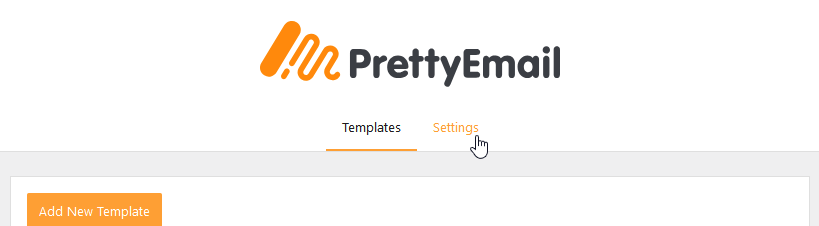
Navigate to Appearance → Pretty Email

-
Select the Settings tab
-
Activate WordPress Emails in the Integrations section

2. Build a Custom Template
Craft a personalized email template for your WPForms Lite notifications:
-
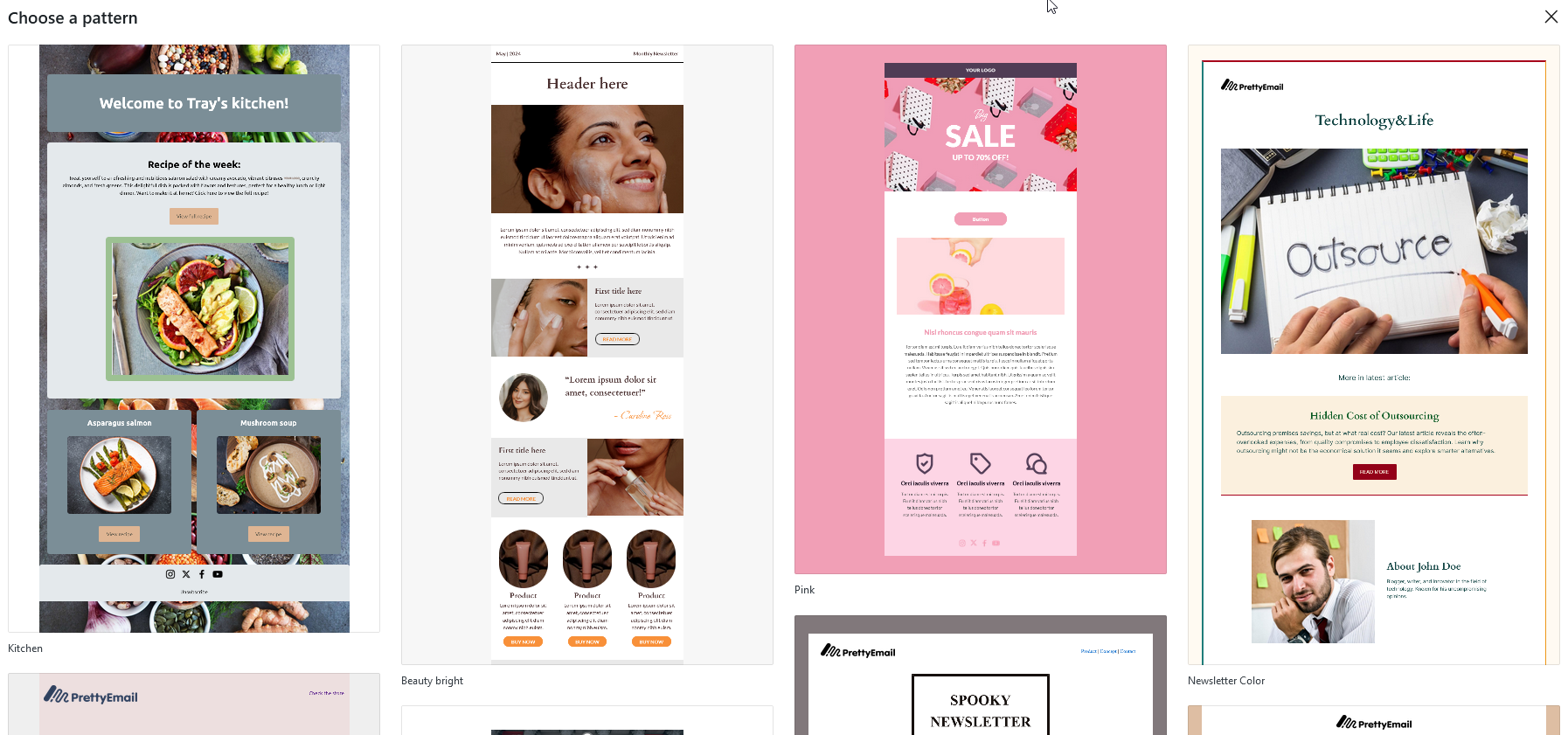
In Pretty Email, select Add New Template

-
Pick from ready-made preset templates or start with a blank canvas
-
Incorporate key components into your template:
- Begin with a Section block to establish your layout framework
- Place an Email Body block where form response data should display
- Include brand assets like logos, headers, and footers
- Adjust colors, typefaces, and margins to reflect your brand
-
Label your template in the Settings panel for quick reference

-
Dispatch a test message to confirm the appearance in your email application

Your template must contain an Email Body block to render the WPForms Lite submission information. Omitting this block prevents form data from appearing in emails.
Consult Creating New Templates and Composing Templates with Blocks for comprehensive template construction guidance.
3. Designate Your Primary Email Template
Select the template that will style your WPForms notifications:
-
Within the Settings tab, locate the Default Template menu
-
Choose your preferred email template from available options

Verify your selected template incorporates an Email Body block to present the form submission information.
4. Configure Your WPForms Settings
Adjust your WPForms for optimal Pretty Email integration:
-
Access WPForms → All Forms from the navigation menu

-
Modify an existing form or generate a new one
-
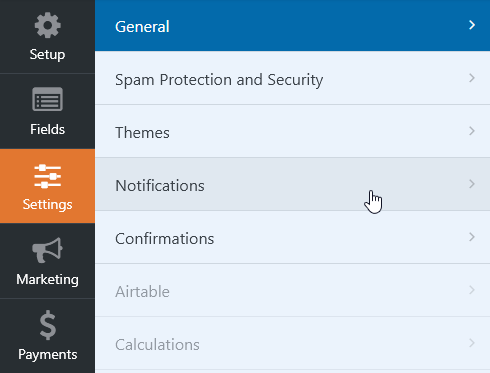
Open Settings → Notifications in the form editor
-
Verify notification parameters include accurate recipient addresses
-
Confirm Enable Notifications is activated

-
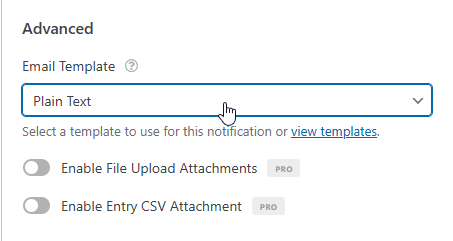
In the Email Template dropdown, select Plain Text format
Implement descriptive labels for form fields to improve email clarity. Thoughtful labeling produces well-organized, professional notification messages.
5. Validate Your Integration
Always conduct thorough testing before launching:
- Complete a test submission via your website form
- Inspect your email inbox for the styled notification
- Verify all submitted information appears correctly
- Examine display quality on both desktop and mobile email platforms
Customization Options
Visual Identity Alignment
Harmonize your email appearance with brand standards:
- Header Imagery: Display your company logo prominently at the top
- Color Coordination: Mirror your website's color scheme for brand consistency
- Typography Consistency: Employ matching fonts throughout all communications
- Layout Variations: Choose from multiple template architectures
- Footer Components: Add social media icons and contact details
Template Collection
Explore our template showcase for inspiration and pre-designed options:
- Business professional layouts
- Creative boutique aesthetics
- Service-oriented designs
- Modern minimalist styles
Troubleshooting Common Issues
Notifications Not Arriving
Problem: Form submissions complete but notification emails fail to deliver.
Solution:
- Review WPForms notification settings for correct configuration
- Verify your hosting service permits outbound email transmission
- Install an SMTP solution like WP Mail SMTP to improve delivery reliability
- Test delivery to an alternate email address
- Check spam and junk folders carefully
Templates Not Rendering
Problem: Notification emails continue appearing as unformatted plain text.
Solution:
- Confirm WordPress Emails integration is enabled in Pretty Email
- Verify default template selection is properly saved
- Ensure your chosen template contains the Email Body block
- Check that WPForms sends plain text format (HTML formatting bypasses templates)
- Clear all caching plugins and WordPress cache
Form Data Not Displaying
Problem: Notification emails arrive without user-submitted information.
Solution:
- Verify Email Body block is positioned in your template
- Review WPForms notification settings and smart tag configuration
- Confirm form field names follow proper conventions
- Test using a simplified form structure initially
Design Display Issues
Problem: Email template appears distorted or improperly formatted.
Solution:
- Test across multiple email platforms (Gmail, Outlook, Apple Mail, Yahoo) as some clients strip styling
- Use universally supported fonts and color values
- Simplify design complexity for improved consistency
Inconsistent Template Application
Problem: Some forms display styling while others remain plain text.
Solution:
- Confirm WordPress Emails integration activation
- Verify default template assignment is configured
- Ensure WPForms transmits plain text format
- Identify conflicts with other email-handling plugins
- Review individual form notification settings for custom overrides
Frequently Asked Questions
Q: Can I apply different templates to individual WPForms?
A: The WordPress Emails integration presently applies one universal template to all WPForms Lite notifications. For granular per-form template assignment, explore our Gravity Forms integration which provides advanced customization.
Q: Does Pretty Email support WPForms add-ons and extensions?
A: Pretty Email operates seamlessly with core WPForms Lite functionality and maintains compatibility with most add-ons, as it processes final email output. Extensions that substantially modify email structure should be tested for compatibility.
Q: Will Pretty Email influence my form notification delivery rates?
A: Pretty Email enhances visual presentation and professional appeal but functions independently from email delivery infrastructure. To maximize delivery success, combine with dedicated SMTP services like SendGrid, Amazon SES, or Brevo.
Q: Can I embed images within WPForms notification emails?
A: Yes! Your Pretty Email template designs support image integration. User-uploaded files from form submissions (available in WPForms Pro) follow your existing WPForms processing configuration.
Q: How can I preview notifications before activating on live forms?
A: Template preview capability exists within the Pretty Email editor. For comprehensive end-to-end testing with actual form data, submit test entries through your website to evaluate complete notification rendering.
Q: Does Pretty Email work with both free and premium WPForms versions?
A: Absolutely! Pretty Email maintains full compatibility with WPForms Lite (free edition) and WPForms Pro (premium edition). Integration steps remain identical across both versions.
Related Resources
Additional Form Integration Guides
- Contact Form 7 Styling - Popular contact form email enhancement
- Gravity Forms Design Options - Advanced form builder customization
- WooCommerce Order Emails - E-commerce transactional email templates
- WordPress Core Emails - System notification customization
Email Design Resources
- Template Creation Walkthrough - Build personalized email layouts
- Block Component Guide - Master email building elements
- Universal Configuration - Maintain brand consistency site-wide
Support Access
Need assistance with WPForms integration? Connect with our support specialists for personalized guidance on email template configuration.
Maintain streamlined form structures for optimal notification clarity. Lengthy forms with numerous fields create dense email content regardless of template quality. Consider multi-step forms for improved user experience and notification readability.